
Anúncios
Let’s be real: if you’re squinting at your phone like you’re trying to decode ancient hieroglyphics, it’s time we had this talk. 📱

Look, I get it. We’ve all been there – holding our phones at arm’s length, zooming in on every single text message, or worse, asking someone else to read something for us because the font looks like it was designed for ants. But here’s the thing: you don’t have to live like this anymore.
Anúncios
Your phone is basically a mini-computer with more customization options than your local coffee shop’s menu, and making text bigger is actually ridiculously easy once you know where to look.
The truth is, this isn’t just about age or needing glasses (though let’s normalize that too, because honestly, who decided tiny fonts were cool?). It’s about accessibility, comfort, and not getting headaches every time you try to read an article or scroll through your social media feeds. Whether you’re team iPhone, team Android, or just someone who wants their digital life to be a bit more comfortable, I’ve got you covered.
Anúncios
So grab your phone, get comfortable, and let’s dive into this together. I promise this won’t be one of those tech tutorials that makes you feel like you need a computer science degree. Think of this more like a friend showing you a neat trick at a coffee shop – casual, helpful, and definitely worth your time.
Why Small Text Is Actually a Big Deal 🔍
Before we jump into the how-to part, let’s talk about why this matters. And I mean really matters, beyond just the obvious “I can’t read this” frustration.
First off, eye strain is no joke. Staring at tiny text for hours can lead to headaches, fatigue, and that lovely feeling where your eyes feel like they’ve been replaced with sandpaper. Not exactly the vibe we’re going for. Studies show that digital eye strain affects around 50-90% of people who work at computer screens – and newsflash, your phone screen counts too.
Second, accessibility isn’t just a buzzword. It’s about making sure everyone can actually use their devices comfortably. Whether you have vision impairment, dyslexia, or just prefer larger text because it’s easier to read while multitasking, you deserve to have your phone work for you, not against you.
And honestly? Life’s too short to be struggling with technology that’s supposed to make things easier. Your phone should adapt to you, not the other way around. That’s kind of the whole point of having all these settings in the first place.
The iPhone Way: Making Text Bigger on iOS 📲
Let’s start with the Apple gang. If you’re rocking an iPhone, you’re in luck because iOS has some pretty slick options for text customization. Apple has been pushing accessibility hard in recent years, and honestly, they’ve done a solid job.
The Quick and Easy Method
Here’s the fastest way to bump up that text size on your iPhone:
- Open the Settings app (that gray gear icon that’s probably buried in a folder somewhere)
- Tap on “Display & Brightness”
- Select “Text Size”
- Drag that slider to the right until you find your sweet spot
Boom. Done. That’s literally it. Your apps that support Dynamic Type (most of Apple’s apps and many third-party ones) will automatically adjust. It’s like magic, except it’s just good design.
Going Nuclear: Bold Text Option
But wait, there’s more! If you want to take things up a notch, you can enable Bold Text. Fair warning though – this requires your phone to restart, so maybe don’t do this right before an important call.
Head back to Settings > Display & Brightness, and toggle on “Bold Text.” Your phone will ask if you want to restart. Say yes, wait a minute, and when it comes back, all your text will have that extra oomph. It’s particularly helpful if you find that bigger text alone still isn’t cutting it for readability.
The Nuclear Option: Larger Accessibility Sizes
Still not big enough? iOS has your back with even larger sizes hidden in the accessibility settings. Navigate to Settings > Accessibility > Display & Text Size > Larger Text. Here, you can toggle on “Larger Accessibility Sizes” and access font sizes that go way beyond the standard range. We’re talking text that’s actually visible without needing a magnifying glass. Revolutionary, right?
Android Users, We Haven’t Forgotten You! 🤖
Android folks, your turn. The good news is that Android is incredibly flexible when it comes to customization. The slightly annoying news is that different manufacturers sometimes put these settings in different places. But don’t worry – I’ll walk you through the most common paths.
The Standard Android Approach
For most Android phones running recent versions of the OS, here’s what you do:
- Open Settings (usually a gear icon)
- Tap “Display”
- Look for “Font size” or “Font size and style”
- Adjust the slider or select a larger preset size
Some Android phones also have a “Display size” option that changes not just text but icons and other UI elements too. This can be a game-changer if you want everything bigger, not just the words.
Samsung’s Special Sauce
Samsung devices have their own flavor of Android, and they’ve actually added some pretty cool features. If you’re using a Galaxy phone:
- Go to Settings > Display
- Tap “Font size and style”
- Adjust both the font size slider and the display size
- You can even change the font style entirely if you’re feeling adventurous
Samsung also includes some additional accessibility options in Settings > Accessibility > Visibility enhancements. Here you can find high contrast themes, color adjustments, and magnification gestures that can help beyond just text size.
Google Pixel’s Clean Approach
Pixel phones keep it simple (in the best way). Settings > Display > Display size and text gives you straightforward sliders for both display size and font size. You can preview the changes in real-time, which is honestly how all phones should do it.
App-Specific Solutions: When System Settings Aren’t Enough 📱
Here’s the thing – sometimes changing your system settings doesn’t affect everything. Some apps are stubborn and do their own thing. Let’s talk about how to handle the most common culprits.
WhatsApp Text Adjustments
WhatsApp has its own text size settings because of course it does. Open WhatsApp, go to Settings > Chats > Font size, and choose from Small, Medium, or Large. Not the most granular control, but it’s something.
Browser Flexibility
Whether you use Chrome, Safari, Firefox, or something else, most browsers let you zoom in on web pages. On iPhone, you can even set a minimum font size for websites in Safari settings. On Android Chrome, you can adjust text scaling in Settings > Accessibility > Text scaling.
Pro tip: Double-tap on a paragraph in most mobile browsers to zoom in specifically on that section. It’s faster than pinch-zooming and centers the text nicely.
Social Media Shenanigans
Instagram, Twitter (sorry, “X”), TikTok – these apps typically follow your system font size settings, but not always perfectly. Instagram especially can be finicky. If you’re having trouble, the system-wide display size changes on Android or the larger accessibility sizes on iPhone usually force these apps to cooperate.
The Magnifier Tool: Your Secret Weapon 🔎
Sometimes you don’t need everything bigger all the time – you just need to read one specific thing. That’s where magnifier features come in clutch.
On iPhone, you can add the Magnifier to your Control Center (Settings > Control Center > Customize Controls). Then it’s just a swipe and a tap away. Your camera becomes a powerful magnifying glass, perfect for reading menus, labels, or any small print in the real world.
Android has similar features depending on your manufacturer. Samsung phones have a Magnifier app, while stock Android devices can use the Magnification gesture (Settings > Accessibility > Magnification). Triple-tap the screen to zoom in temporarily – super handy when you just need a quick close-up.
Third-Party Apps That Actually Help 💡
While your phone’s built-in options should handle most situations, there are some solid apps out there that can help with specific needs.
For reading articles and web content, apps like Pocket or Instapaper let you save articles and read them in customizable formats with adjustable text sizes, fonts, and backgrounds. It’s like creating your own perfectly readable version of the internet.
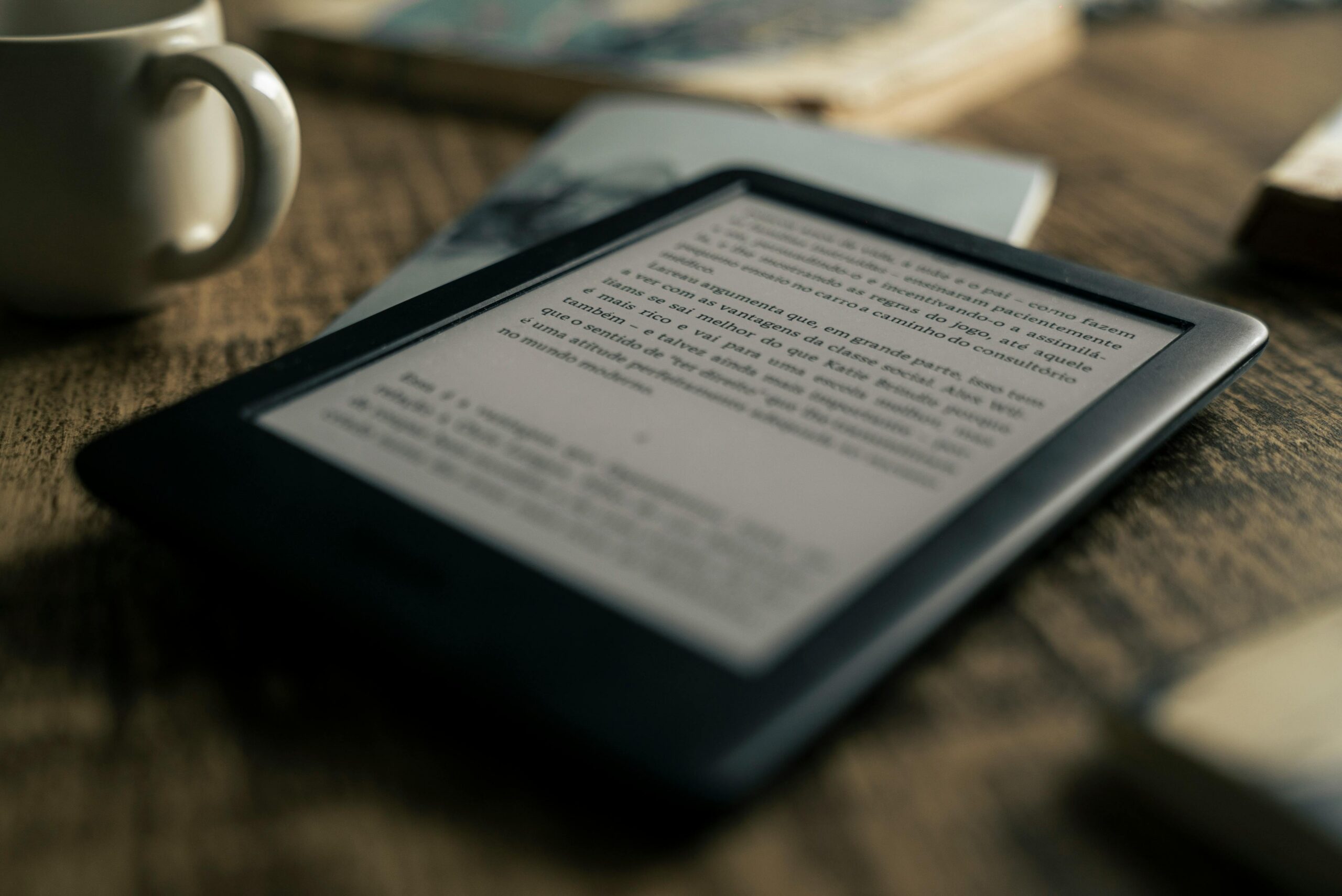
If you do a lot of reading on your phone, consider an e-reader app like Google Play Books or Apple Books. These apps are designed with reading in mind and offer extensive typography controls – font size, font type, line spacing, margins, you name it. Reading a novel on your phone shouldn’t require a magnifying glass.
Display Settings That Make Everything Easier 🌟
While we’re at it, let’s talk about some other display settings that can make your phone more comfortable to use alongside bigger text.
Brightness and Eye Comfort
Auto-brightness is your friend. Let your phone adjust screen brightness based on ambient light – it’s easier on your eyes and your battery. Both iOS and Android have this enabled by default, but double-check in your display settings.
Dark mode isn’t just trendy – it can actually reduce eye strain, especially in low-light conditions. The contrast can make text easier to read for some people. Try it out and see if it works for you.
Color and Contrast Adjustments
Both iOS and Android offer color filters and contrast adjustments in their accessibility settings. If you find that certain color combinations are hard to read, you can invert colors, enable grayscale, or adjust color filters to make text pop more against backgrounds.
Reduce Motion and Transparency
This might seem unrelated, but reducing animations and transparency effects (available in accessibility settings on both platforms) can actually make text clearer and easier to focus on. Plus, it makes your phone feel snappier. Win-win.
The Real Talk: Dealing With Resistance 💪
Here’s something nobody really talks about: there’s this weird stigma around making your text bigger. Like it’s admitting defeat or something. Let me shut that down right now.
Using larger text isn’t a sign of weakness or aging out of technology. It’s called being smart about your health and comfort. Tech professionals, developers, and designers use larger text all the time because they understand that readability matters. Your eyes don’t have to prove anything to anyone.
If someone gives you grief about your phone settings, just remember that they’re probably struggling to read their own screen but are too stubborn to admit it. Don’t be that person. Embrace the comfort.
Making It Stick: Tips for Long-Term Success 🎯
Once you’ve adjusted your text size, here are some tips to make sure it stays working for you:
- Revisit your settings every few months – your needs might change
- When you get a new app, check if it respects your system settings or has its own text options
- Don’t be afraid to go bigger than you think you need – comfort is more important than aesthetics
- Combine larger text with other accessibility features for maximum comfort
- Share this knowledge with friends and family who might be struggling but don’t know these options exist
Also, take regular breaks from your screen. The 20-20-20 rule is legit: every 20 minutes, look at something 20 feet away for 20 seconds. Larger text helps, but breaks are crucial too.
When Bigger Isn’t Working: Next Steps 🔄
If you’ve made your text as large as possible and you’re still struggling, it might be time to consider some other options.
First, maybe it’s time for an eye exam. No shame in that game – vision changes over time, and glasses or contacts might be the missing piece. Larger phone text is awesome, but it’s not a substitute for proper vision correction if you need it.
Second, consider devices with larger screens. If you’re using an older or smaller phone, upgrading to a model with a bigger display might be worth it. More screen real estate means more room for comfortable text, even at smaller sizes.
Finally, explore voice features. Both iOS and Android have increasingly impressive voice assistants that can read text aloud, transcribe speech, and help you interact with your phone without reading tiny text. Siri, Google Assistant, and various accessibility features can be legitimate alternatives for many tasks.
The Bottom Line: Your Phone, Your Rules ✨
Look, at the end of the day, this is your device. It should work for you in whatever way makes your life easier and more comfortable. Bigger text isn’t a compromise – it’s an optimization. It’s taking control of your digital experience and saying “actually, I’d like to read this without getting a headache.”
The beauty of modern smartphones is that they’re incredibly customizable. Those settings exist for a reason. Use them. Tweak them. Make your phone yours. And if anyone suggests that wanting readable text makes you less tech-savvy, they’re missing the entire point of user experience design.
Technology should be accessible and comfortable for everyone. Full stop. No qualifications, no exceptions. You paid good money for that phone – it should serve you, not the other way around.
So go ahead. Make that text bigger. Adjust those display settings. Enable that bold font. Your eyes will thank you, your productivity will probably improve, and you’ll wonder why you didn’t do this sooner. Trust me on this one – future you is going to appreciate present you making this change.
And hey, if you found this helpful, share it with someone who’s still doing the phone-at-arm’s-length thing. We all know that person. Maybe it’s time they discovered that life doesn’t have to be a constant squinting session. Just saying. 😉
